←View the changelog
New feature
New Feature: Countdown Timer Component
A brand new Countdown Timer component is now available in the component catalogue, helping you create urgency and drive conversions during sales, limited-time offers, and product launches.
The Countdown Timer lets you display a live, ticking countdown in your checkout or thank you page. Here's what you can do with it:
- Set a target date and time: Pick the exact date and time your sale or promotion ends. The countdown is based on your store's timezone, so it stays accurate regardless of where your customers are shopping from.
- Flexible text with inline countdown: Write your own messaging and use
[countdown]anywhere in your title or subtitle to embed the timer directly in your text. For example, "Sale ends in [countdown]" becomes "Sale ends in 2d 5h 30m 15s". If you don't use the placeholder, the countdown displays as a standalone element. - Two layout options:
- Text only (default): Just your countdown text, clean and simple.
- Image above: Add a promotional banner image above the countdown text, perfect for branded sale announcements.
- Mobile-optimized images: Optionally provide a separate image for mobile devices so your countdown banner looks great on every screen size.
- Markdown support: Format your title and subtitle with bold, italic, and links using markdown, just like other text components.
- Display rules: Like all components, you can use display rules to control when and where the countdown appears, for example, only show it when cart total is above a certain amount, or only for specific product collections.
Examples of how to use it:
- "Flash sale ends in [countdown], don't miss 20% off everything!"
- A holiday campaign banner counting down to the last shipping date for guaranteed delivery
- A product launch countdown on your thank you page to build excitement for an upcoming drop
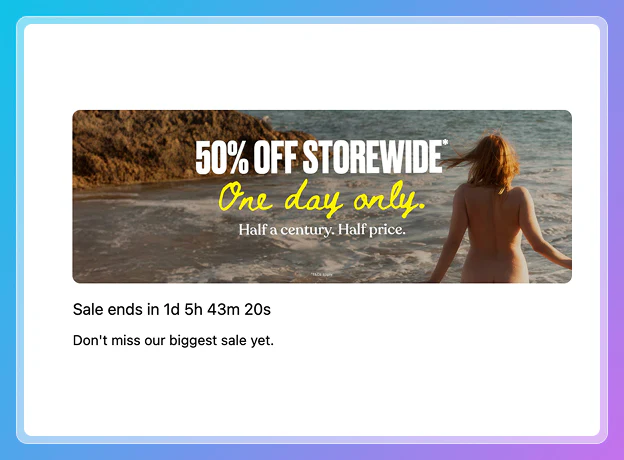
Available on all plans. Create a new component and select "Countdown Timer" from the content section of the catalogue to get started.