Countdown timer.
Display the time remaining until a real promotion or shipping deadline in Shopify checkout, with configurable text and an optional banner image.
For Shopify Plus Checkout
Configure your component.
Set the deadline
Choose the date and time the countdown should reach.
Place the timer in the message
Use the [countdown] token to insert the remaining time into Markdown-formatted text.
Choose the presentation
Add an optional banner image with text overlay, then review readability on smaller screens.
The countdown timer counts towards a date and time you set. Use it to communicate an actual deadline, such as an offer end or dispatch cutoff, rather than implying stock is reserved or a cart will expire.
The tools behind your components.
Connect content, audience, and presentation controls. Available settings depend on the component and its version.
Good together.
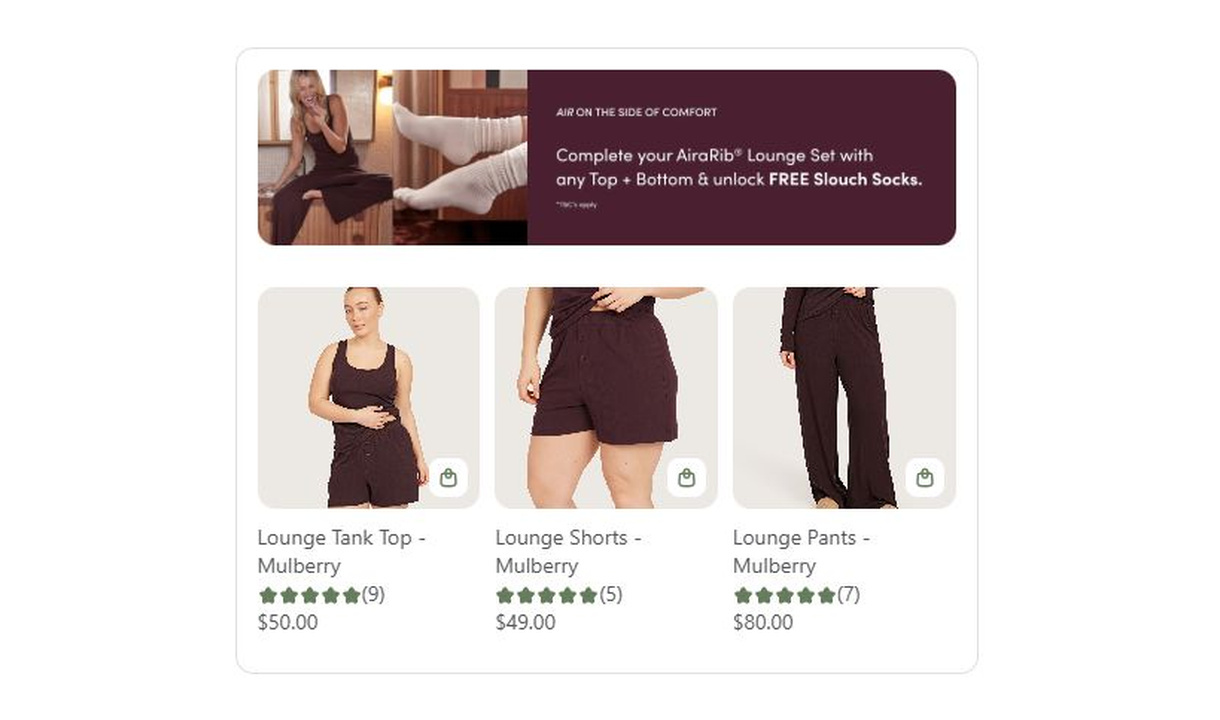
Campaign upsell
Combine a promotional banner with curated product recommendations in Shopify checkout. Present the products as a carousel or paginated list.
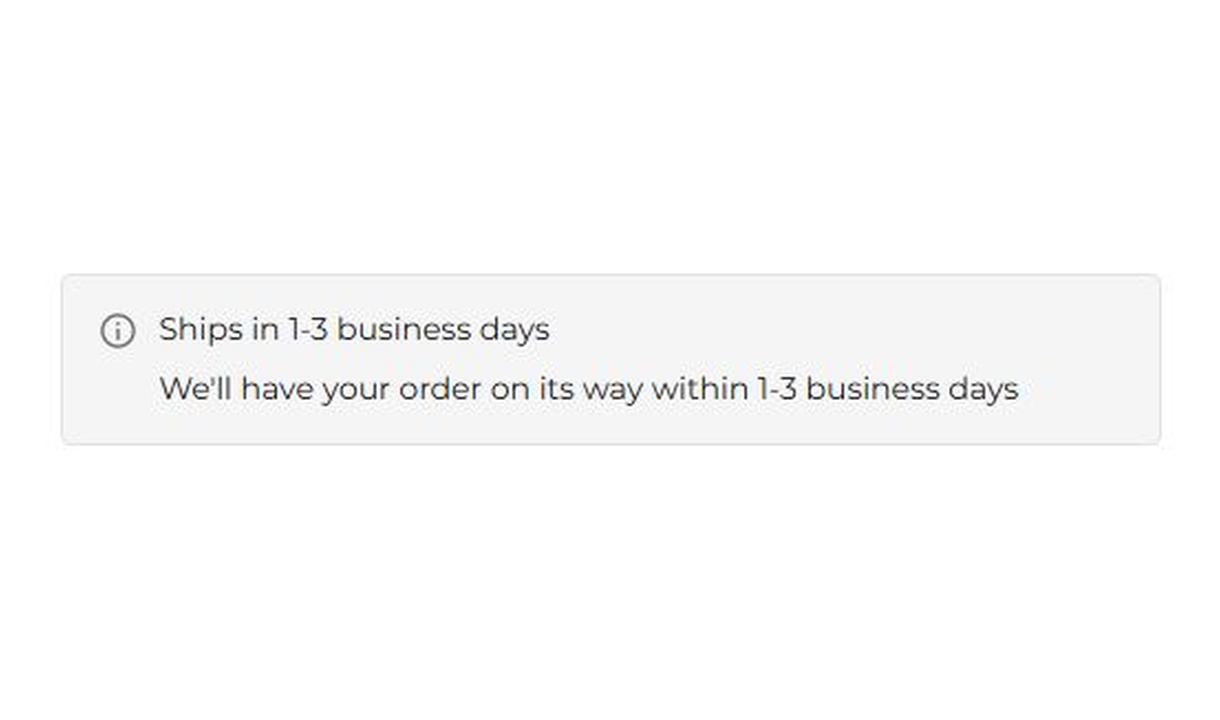
Banner
Keep customers informed before they order. Highlight dispatch delays, free shipping, and other important checkout alerts.
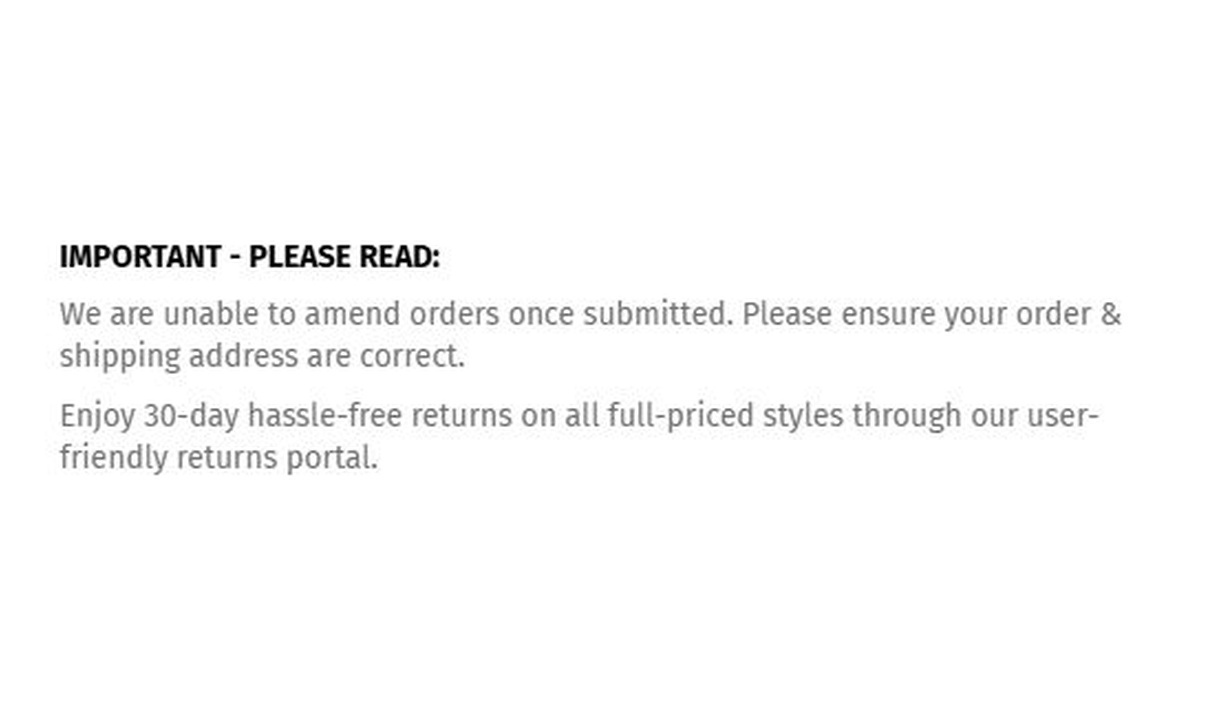
Simple message
Give customers the information they need to keep going. Share short support, order, or brand messages without adding clutter to checkout.
Your questions, answered.
What can a checkout countdown timer count down to?
Set a date and time for a genuine deadline, such as a promotion ending, a launch, or a shipping cutoff. The timer displays the time remaining until that deadline.
Can I put the countdown inside a sentence?
Yes. Insert [countdown] where the timer should appear in the component text. Use the surrounding wording to explain exactly what the deadline refers to.
Can I add an image to the timer?
Yes. Add an image above the timer or place text over the artwork. The optional link can have a different destination for each configured language.
Does the timer reserve stock or end a promotion automatically?
No. The countdown is informational. It does not reserve inventory, expire a cart, or enforce an offer's end time. Configure the actual promotion separately.
Which checkout block does Countdown timer use?
Use the Latest Dynamic Content block in Shopify's checkout editor. Countdown timer does not work on the old Checkout Components block.
Can I show the component only to certain customers or carts?
Yes. Use display rules based on products, cart value or quantity, customer tags, markets, or delivery details. Combine conditions with all or any logic and test representative carts before publishing.
Can I translate the component into multiple languages?
Yes, on Growth and above. Add translations for the languages your store supports. Text without a translation uses your default wording; text embedded in uploaded images needs separate translated artwork.
Do I need Shopify Plus, and which app plan includes this component?
Yes. Checkout Components is built for Shopify Plus stores. Starter includes one content or input component; Growth and above include unlimited content and input components. Translations and thank-you page content are included on Growth and above.