Image banner.
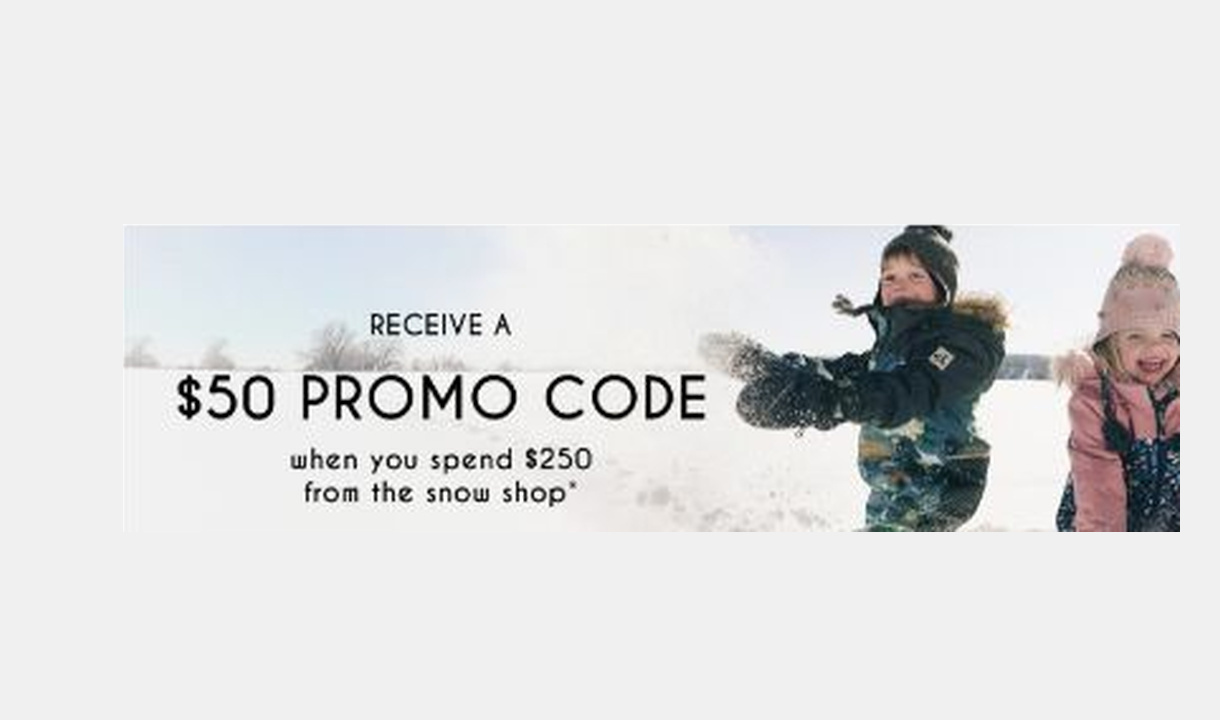

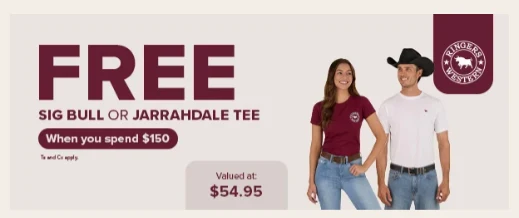

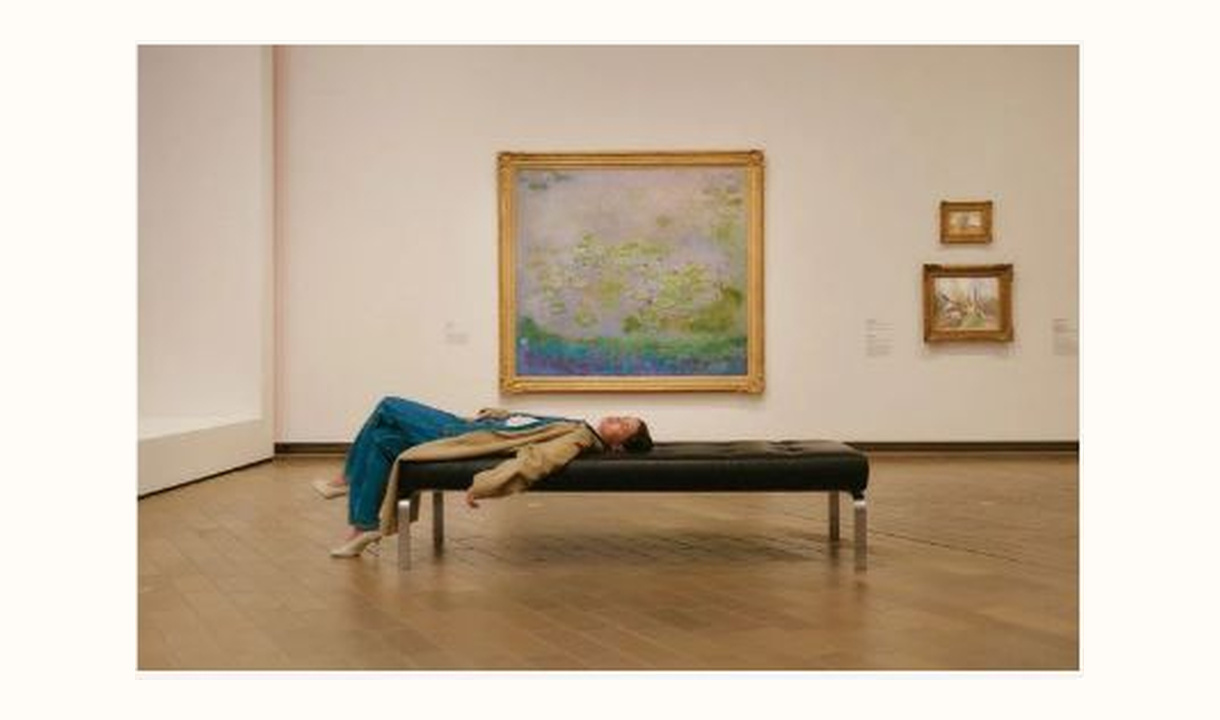




Add branded or promotional imagery to Shopify checkout with an image banner and an optional link to further information.
For Shopify Plus Checkout
See it in checkout.
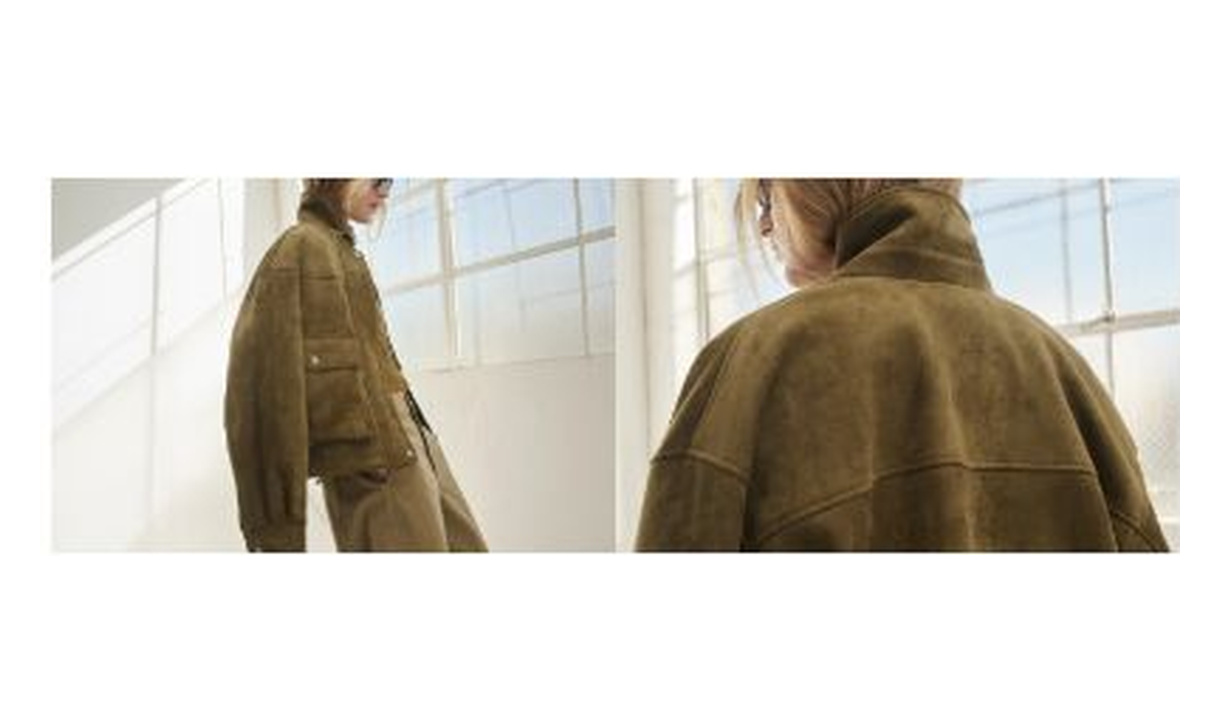



Configure your component.
Choose the artwork
Use an image designed for the available checkout width, with important content kept away from the edges.
Set the destination
Add the relevant link when customers need more information.
Review different screens
Check how the image reads on desktop and mobile before adding it to checkout.
An image banner gives a campaign or brand message its own visual space. Use it when imagery adds meaning, and keep essential offer details available as readable text.
The tools behind your components.
Connect content, audience, and presentation controls. Available settings depend on the component and its version.
Good together.
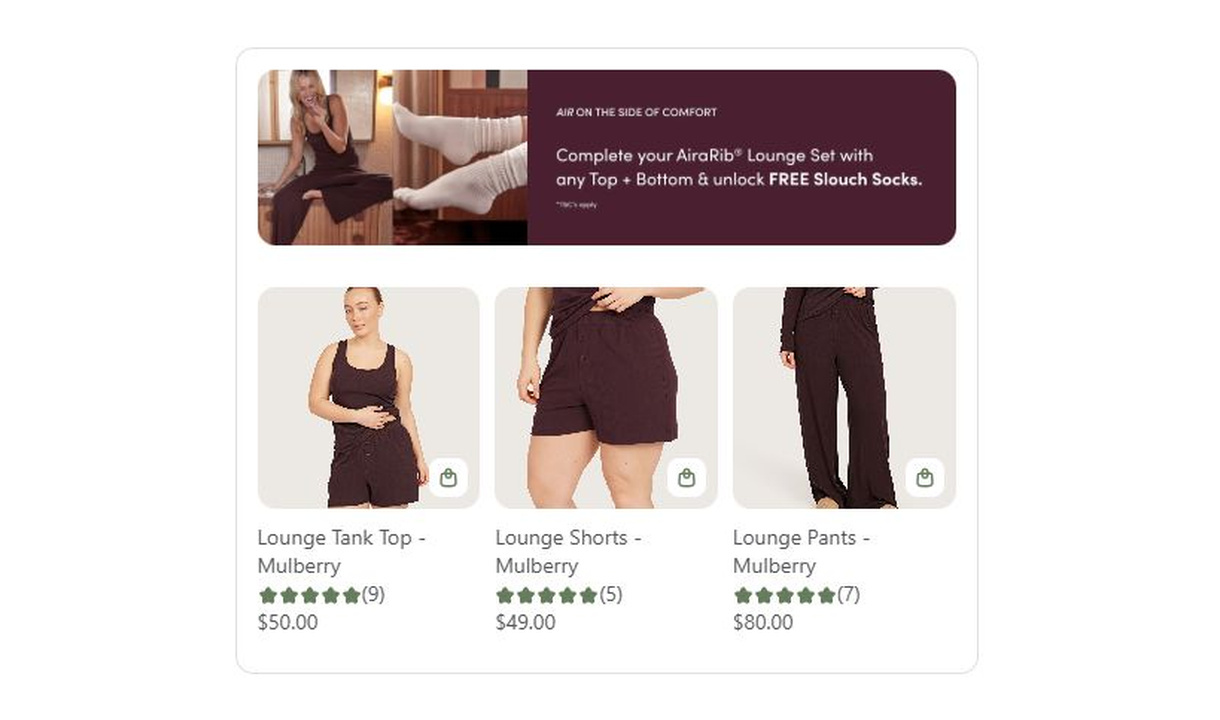
Campaign upsell
Combine a promotional banner with curated product recommendations in Shopify checkout. Present the products as a carousel or paginated list.
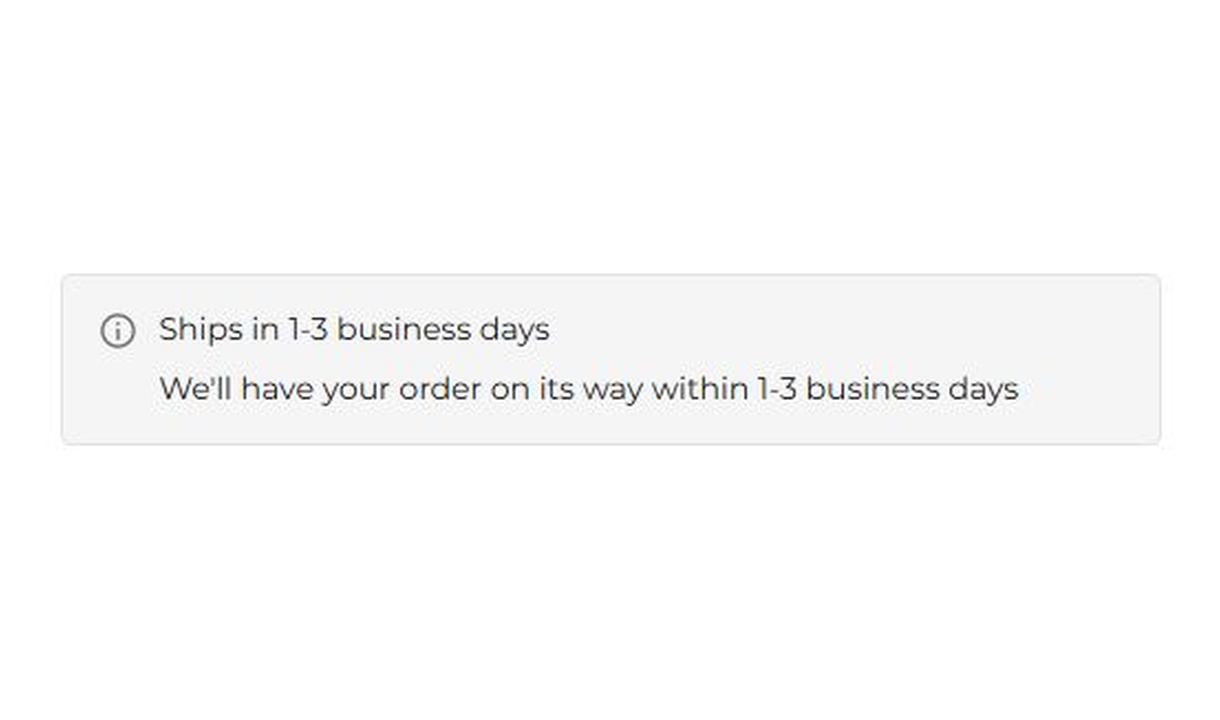
Banner
Keep customers informed before they order. Highlight dispatch delays, free shipping, and other important checkout alerts.
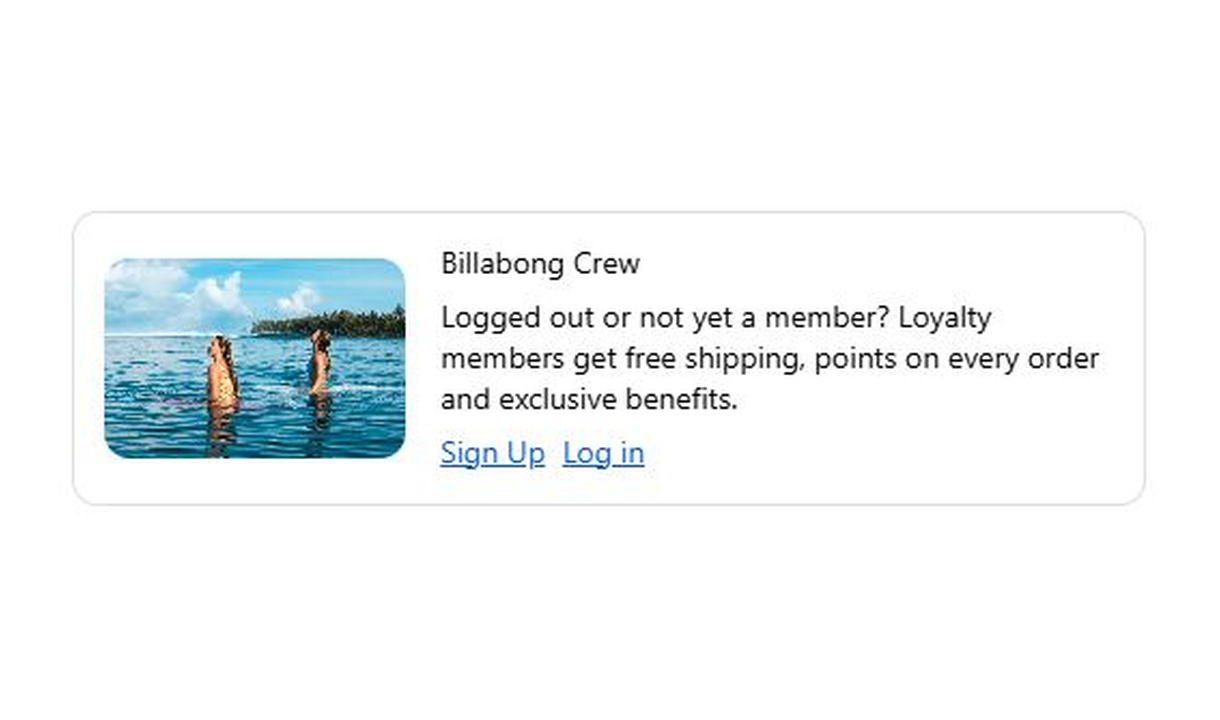
Call to action
Invite guest shoppers to join your loyalty programme or log in. Give customers a clear next step with a targeted checkout button.
Your questions, answered.
What is an image banner used for in Shopify checkout?
Use an image banner for promotional artwork or brand imagery that adds useful context to the order. Keep essential offer conditions in readable text as well as the image.
Can an image banner link to another page?
Yes. Add an external destination when the customer needs more information, such as a campaign or brand-information page. Choose a destination relevant to the checkout decision.
Can I show different images for different markets?
Yes. Create an image-banner component for each version and apply the relevant market display rule.
Will image text translate automatically?
No. Component text translations do not rewrite words embedded in artwork. Upload the appropriate translated image and target it to the right audience.
Can an image banner recommend products?
An image banner shows artwork and an optional link. Use Campaign upsell when you need a banner paired with product recommendations and add-to-cart controls.
Can I show the component only to certain customers or carts?
Yes. Use display rules based on products, cart value or quantity, customer tags, markets, or delivery details. Combine conditions with all or any logic and test representative carts before publishing.
Can I show it only on mobile or desktop?
Yes. In the matching Latest block in Shopify's checkout editor, set Show on devices to all, mobile, or desktop. Check the result in the editor's device previews before publishing.
Do I need Shopify Plus, and which app plan includes this component?
Yes. Checkout Components is built for Shopify Plus stores. Starter includes one content or input component; Growth and above include unlimited content and input components. Translations and thank-you page content are included on Growth and above.